


Gallery Vault-Hide Photo Video
4.413.13K Reviews
App Specs
- Version
- 4.6.33
- Updated On
- License
- Free
- Downloads
- 50,000,000+
- Developer
- GalleryVault Developer Team
- Categories
- Video Players & Editors
- Platform
- Android
Screenshots
 Analysis by AppCompare
I judge a privacy app less by how reassuring its interface feels and more by what I can actually verify about its controls and my choices. Gallery Vault-Hide Photo Video is designed to put selected pictures and videos behind a lock, which can be useful when I hand my phone to someone else or want a tidier boundary between everyday browsing and personal files. I would treat it as a practical layer of organization and access control, not as a guarantee that sensitive material is protected in every situation.
What a private gallery can—and cannot—solve
A vault app addresses a common, specific problem: someone browsing the regular photo gallery may otherwise come across files you would rather keep separate. That can matter when showing a friend a batch of holiday pictures, lending a phone to a child, or keeping personal images out of a casual scroll. It is a different job from securing an entire phone, protecting online accounts, or safely storing business records.
That distinction shapes my expectations. Moving a file into a private area is not the same as controlling every copy of it, and a lock screen cannot prevent someone from accessing an unlocked device in every circumstance. I would use the app for convenient separation, while keeping the phone itself protected and thinking carefully about which files I import. If a file has serious legal, financial, or workplace consequences, I would not rely on a gallery vault as my only safeguard.
Trust starts with choices, not reassuring labels
Gallery Vault is a free app in the video-player and editor space, made by GalleryVault Developer Team. It has an average rating of 4.4 from around 606,000 ratings, with over 50 million installs. That level of use makes it a familiar option for people looking for a private gallery, but popularity alone does not tell me how a particular file is handled or whether the app fits my needs.
The app is rated for Everyone and was released on August 4, 2012. Its current version is 4.6.18, and it requires Android 6.0 or later. I appreciate knowing those practical basics before installing: the age rating describes its audience, while the operating-system requirement determines whether it can run on a device. It is free to download, with in-app purchases ranging from $0.99 to $48.99 per item, so I would check the purchase screens before paying for anything and decide whether any paid option is worth it to me.
Set up a recovery route before importing files
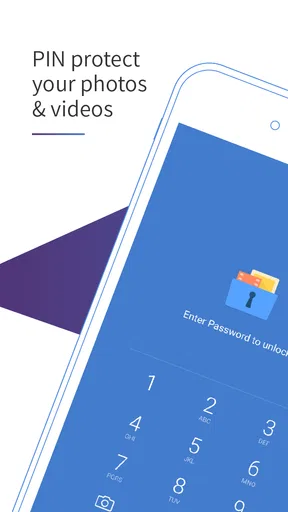
Upon downloading Gallery Vault-Hide Photo Video, I was greeted with a clean and intuitive interface. It's pretty straightforward to navigate, which is a relief because who wants to spend ages trying to figure out how to use an app? Setting up my vault was quick, thanks to the easy-to-follow instructions. You simply set a password, and boom, you're ready to start tucking away those files.
The initial setup process also includes creating a security email, which is a nice touch in case you forget your password. Trust me, it's a lifesaver for those of us who are a bit forgetful!
Worth Reading Before You Choose

Flipboard Shows What News Apps Must Do Beyond the Feed

Switching to Android Auto Means Rethinking Your Driving Routine

Google Calendar Makes a Crowded Week Easier to Manage

Ludo King Makes the Most of the Minutes Between Plans

Baby Panda World Brings Quick Play to Modern Phones, but Its Game Library Feels Busy

ESPN’s Live Game View Makes Following Close Games Easier
Before importing a large collection, I would test the recovery route with a password I can remember and an email account I can access. A locked vault that I cannot recover is a real inconvenience, especially if it holds originals that I later remove from my regular gallery. I would also move one unimportant test image first, then check whether it appears where I expect and whether I can restore it. That small trial helps me understand the workflow before I trust it with personal files.
Using the vault in everyday situations
I use a vault most confidently when I plan the handoff before someone else gets my phone: I decide which pictures are fine to browse and which should stay separate, then check that the vault is locked before sharing the screen. That simple routine is the focus here, along with the small choices that help me avoid misplaced files and unnecessary surprises.
Moving files without losing track of them
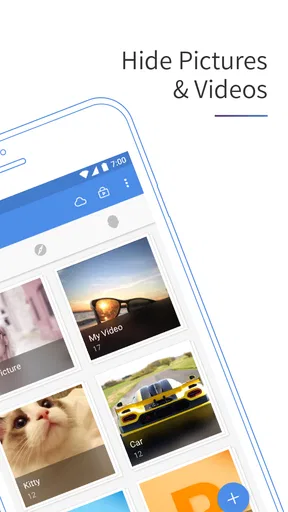
One of the key features is the app’s ability to encrypt photos and videos, keeping them safe from unauthorized access. I was impressed by how seamlessly it imports files from both my gallery and directly from the camera. It’s like having a secret hidden compartment in your digital life.
When I sort private items, I prefer to do it in small batches rather than selecting everything at once. A few minutes spent checking what I selected can prevent the annoying mistake of moving the wrong photo or leaving an important one behind. I would also confirm how the original behaves after import instead of assuming that moving a file automatically removes every other copy. This matters when an image has been shared, backed up elsewhere, or saved in more than one album.
A realistic use case is lending my phone to a friend to choose photos from a recent outing. I can keep the pictures I am comfortable sharing in the ordinary gallery and separate personal images before passing the device over. That is more useful than trying to explain which thumbnails to avoid, though it still depends on locking the phone when I am not actively handing it over and not leaving the vault open.
Locks, decoys, and the limits of discretion
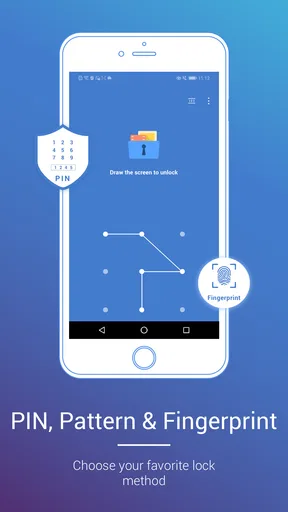
Another standout feature is the invisible pattern lock. It's a smart addition that makes it even harder for someone to snoop around. The decoy password option is also a clever touch. In a situation where you're forced to open your vault, this feature allows you to show a different set of files. How cool is that?
I see these options as situational tools, not a substitute for sound judgment. A pattern can be observed if someone watches me unlock the screen, and a decoy only helps if I have configured it carefully and understand what it reveals. Before relying on either, I would try the unlock flow myself, make sure the everyday password and any alternate route are not easy to guess, and avoid demonstrating the pattern in front of other people.
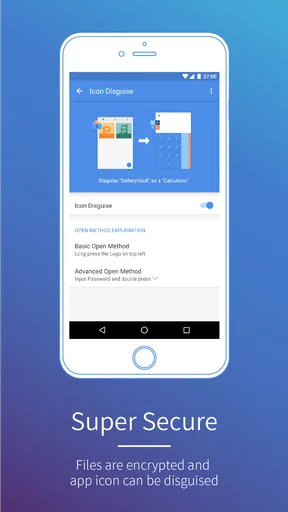
Disguising an app icon can make a private utility less obvious on a home screen, but it should not be mistaken for invisibility. App settings, search results, notifications, or someone who already knows what to look for may still draw attention to it. I find this feature most useful for reducing casual curiosity, not for hiding the existence of the app from a determined person with access to my device.
Backups deserve a deliberate decision
Plus, the app supports a wide range of file formats, meaning you can hide pretty much anything. And let's not forget about the cloud sync feature. It ensures that your files are backed up and accessible across devices. I found this particularly useful when I switched phones and wanted to keep my private files intact.
Cloud backup can make a phone change less stressful, but it also changes the privacy decision: a file that leaves one device may be subject to the account and service arrangements involved in that backup. I would read the choices shown in the app, use an account I control, and test restoring a low-sensitivity file before depending on a backup for irreplaceable material. If I do not need access on another device, keeping the workflow local may feel simpler; if I do need continuity, I would make that choice knowingly rather than turning on sync automatically.
For a phone upgrade, I would not wipe or trade in the old device until I had confirmed that the files I care about are available on the new one. I would also check the vault itself after restoration, rather than relying only on a successful-looking transfer. This is a useful habit for any private-file workflow because a missing recovery step is easy to notice only after the original phone is gone.
How it compares with ordinary gallery tools
Using the app has been a smooth experience. The interface is not just user-friendly but also visually appealing. I appreciate the little details, like how the app disguises itself as a different app icon, adding an extra layer of privacy. It’s the small things that really make a difference.
Compared with simply placing images in a standard album, a dedicated vault gives me a separate locked space and features aimed at discretion. A regular gallery is usually quicker for sorting, sharing, and viewing everything together; it is the better choice when privacy is not a concern and I want fewer steps. A phone’s built-in privacy tools may also suit someone who wants fewer separate apps, though the experience depends on the device. Gallery Vault makes most sense when I specifically want a standalone place for selected media rather than a replacement for my whole photo library.
I've noticed that the app runs efficiently without draining my battery, which is a common problem with other apps of this nature. The developers did a great job optimizing performance. I also like that it doesn’t require excessive permissions, something that’s always a red flag for me when installing new apps.
Permissions are one area where I would rely on the prompts and settings visible on my own device, rather than assume every installation behaves the same way. I review each request when it appears and consider whether it makes sense for the task I am trying to do, such as selecting or capturing media. If a permission seems unrelated or I am uncomfortable granting it, I pause and reconsider whether I need that feature. That is more useful than treating a general impression about permissions as a permanent guarantee.
Who will appreciate it, and who may prefer another route
Security is the heart of Gallery Vault-Hide Photo Video. The app uses advanced encryption methods to ensure your files are safe. I did a bit of digging, and it turns out the app doesn't store any of your data on their servers. Everything stays on your device, giving you peace of mind that your private moments remain just that—private.
The app’s lock, file separation, and optional backup approach will appeal most to someone who wants a straightforward place for personal media and is willing to manage a vault alongside the usual gallery. It can also help people who regularly show photos on their phone and want a clearer boundary between shareable and private collections. If I were setting it up for that purpose, I would first decide which files belong in each space and keep the public collection easy to browse.
Someone who wants a full photo-management system, shared albums, or a simple way to edit and organize a large library may be happier with a conventional gallery app. Likewise, anyone who dislikes passwords, recovery setup, or extra steps every time they need a file may find the vault more frustrating than helpful. It is not a good fit if the goal is to protect files from every possible form of access, or if a person cannot safely maintain the password and recovery email.
What I would check before trusting it with important media
The app features a break-in alert, which snaps a photo of anyone trying to access your vault without permission. It's a nifty feature that adds an extra layer of security. Knowing that you have eyes on potential intruders is quite reassuring.
I would treat alerts as a way to notice possible access attempts, not as proof that every attempt will be captured or identified. Before relying on this option, I would review the in-app controls, understand what happens when an alert is triggered, and make sure the phone is in a situation where the feature can operate as expected. A notification or image can itself be sensitive, so I would consider who can view alerts on the device and whether that is appropriate for my circumstances.
More broadly, I would make a short checklist before putting especially personal files in any vault: secure the phone, choose a distinct password, set up recovery, test importing and restoring one file, and decide whether cloud backup is actually wanted. Those steps do not make the app invulnerable; they help me avoid preventable mistakes such as forgetting credentials or assuming a backup exists when it does not.
A measured recommendation
After spending some quality time with Gallery Vault-Hide Photo Video, I’m genuinely impressed. It’s a robust app that delivers on its promises, providing a secure haven for your private files. It's packed with features that cater to both the tech-savvy and the not-so-tech-savvy among us.
If you’re in the market for a reliable app to keep your photos and videos under wraps, this might just be the perfect fit for you. It’s simple, effective, and most importantly, it does exactly what it says on the tin. Give it a whirl and enjoy that extra layer of privacy in your digital world.
My recommendation is cautious rather than absolute: I would consider it for everyday separation of personal pictures and videos, especially if I wanted a password-protected space and a recovery option. I would not choose it as my only defense for files where a disclosure would have serious consequences, and I would compare it with the phone’s own privacy tools if I wanted fewer moving parts. Its free entry point makes it easy to try, but the in-app purchases mean I would check costs before committing to a paid feature. The best test is a small one: set up recovery, import a non-sensitive file, and see whether the routine feels reliable enough for the media I actually need to protect.
Pros
- Easy-to-use interface for quick navigation.
- Strong encryption keeps files secure.
- Supports a wide range of file formats.
- Backup options to cloud services available.
- Stealth mode hides app icon for privacy.
Cons
- Limited features in free version.
- Occasional ads can interrupt usage.
- Some features require in-app purchases.
- May consume significant device storage.
- No password recovery if forgotten.
FAQs for Gallery Vault-Hide Photo Video
What is Gallery Vault-Hide Photo Video, and how does it work?
Gallery Vault-Hide Photo Video is an app designed to protect your privacy by hiding your photos, videos, and other files. It works by encrypting your media and storing it in a secure gallery that is accessible only with a password or fingerprint. This ensures that your private content remains hidden from prying eyes.
Is Gallery Vault-Hide Photo Video secure to use?
Yes, Gallery Vault-Hide Photo Video is built with advanced encryption technology to ensure that your files are safe and secure. The app provides password protection and supports fingerprint authentication for added security. Additionally, it does not store your data on any external servers, keeping everything on your device.
Can I recover my files if I forget my password?
If you forget your password, Gallery Vault-Hide Photo Video offers a password recovery option. You can set a recovery email during initial setup, allowing you to reset your password if forgotten. However, without this setup, recovering your files might be challenging, so it's essential to remember your credentials.
Does Gallery Vault-Hide Photo Video support backup options?
Yes, Gallery Vault-Hide Photo Video supports backup options to ensure your files are not lost. You can back up your hidden files to your device's storage or cloud services like Google Drive. This feature provides an extra layer of security and peace of mind in case of device failure or accidental deletion.
Will Gallery Vault-Hide Photo Video affect my device's performance?
Gallery Vault-Hide Photo Video is optimized to run smoothly on both Android and iOS devices. It uses minimal resources, ensuring that your device's performance is not significantly affected. Regular updates and optimizations further enhance its efficiency, making it a reliable choice for privacy protection without slowing down your device.


